Company
Everything that defines who you are in MyPSN — your market, your analysis, your saved searches, your profile, and your team. Spend 15 minutes here once and the rest of the platform gets dramatically more useful.
- 1Open My MarketSidebar → Company → My Market.
- 2Add competitors3–5 named organisations you want to track.
- 3Pick org types & regionse.g. NHS + your delivery regions.
- 4Add CPV codesStart broad, then refine.
- 5Update & rebuildClick Update, then Rebuild Radar Data.
Find your way around
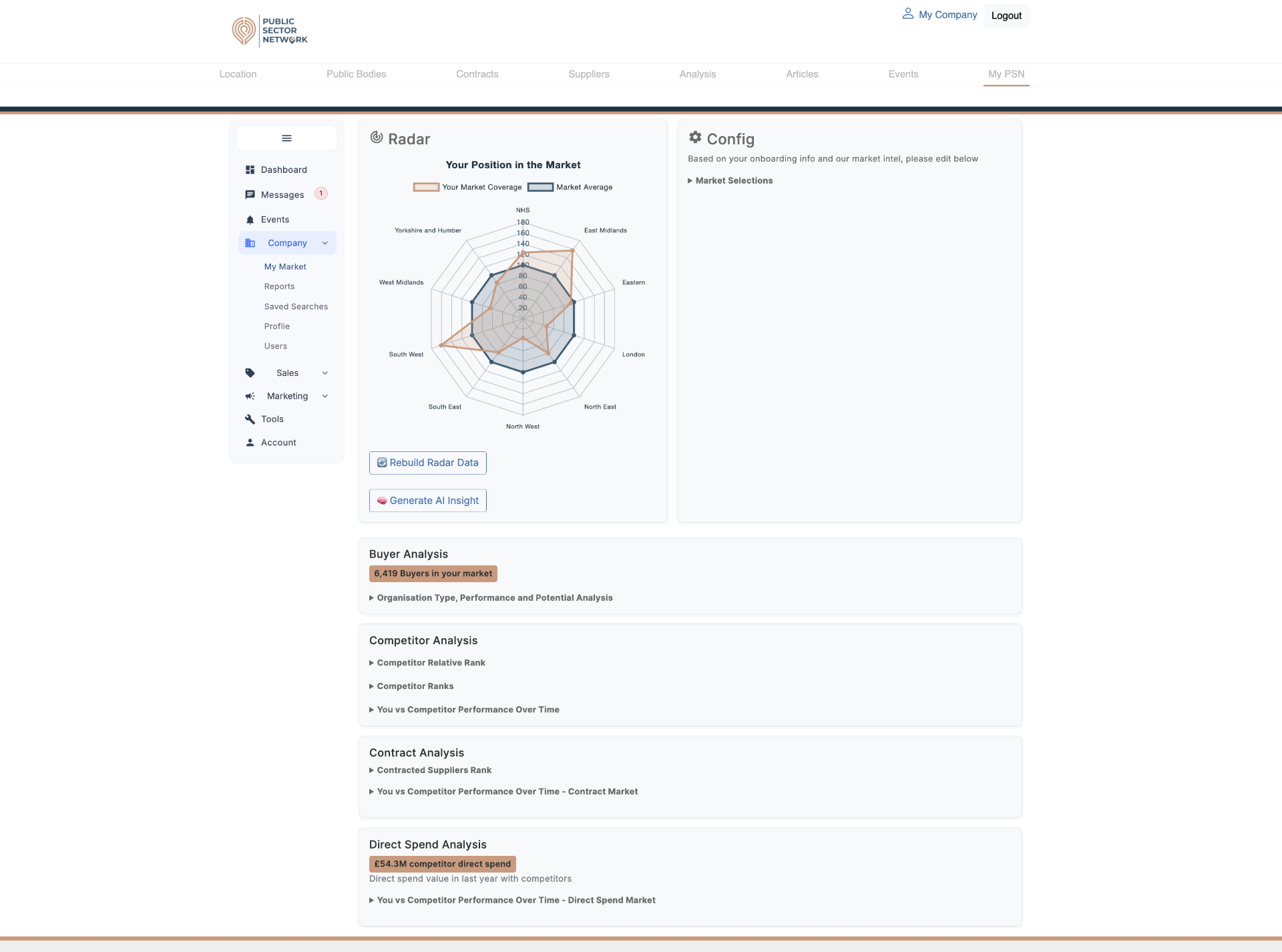
The Company section sits in the left sidebar and bundles five sub-pages plus the main dashboard view.
 1234
1234- 1Company sub-menuMy Market, Reports, Saved Searches, Profile, Users.
- 2Radar chartYour market coverage (orange) vs the market average (navy) per region.
- 3Config panelEdit your Market Selections — competitors, regions, CPVs, keywords.
- 4Analysis cardsBuyer, Competitor, Contract and Direct Spend Analysis — expand each to drill in.
What's inside Company
- My MarketConfigure your competitors, regions, CPVs, org types and keywords. Everything else flows from here.
- ReportsBespoke reports prepared by your account manager (e.g. Supplier Intel Report).
- Saved SearchesPublic Body, Tender & Contract, and Direct Spend searches — edit, run or remove from one place.
- ProfileYour public-facing supplier profile: org details, sector, services description.
- UsersAdd teammates and configure who receives Sales, Marketing or PSN contact comms.
Define your market
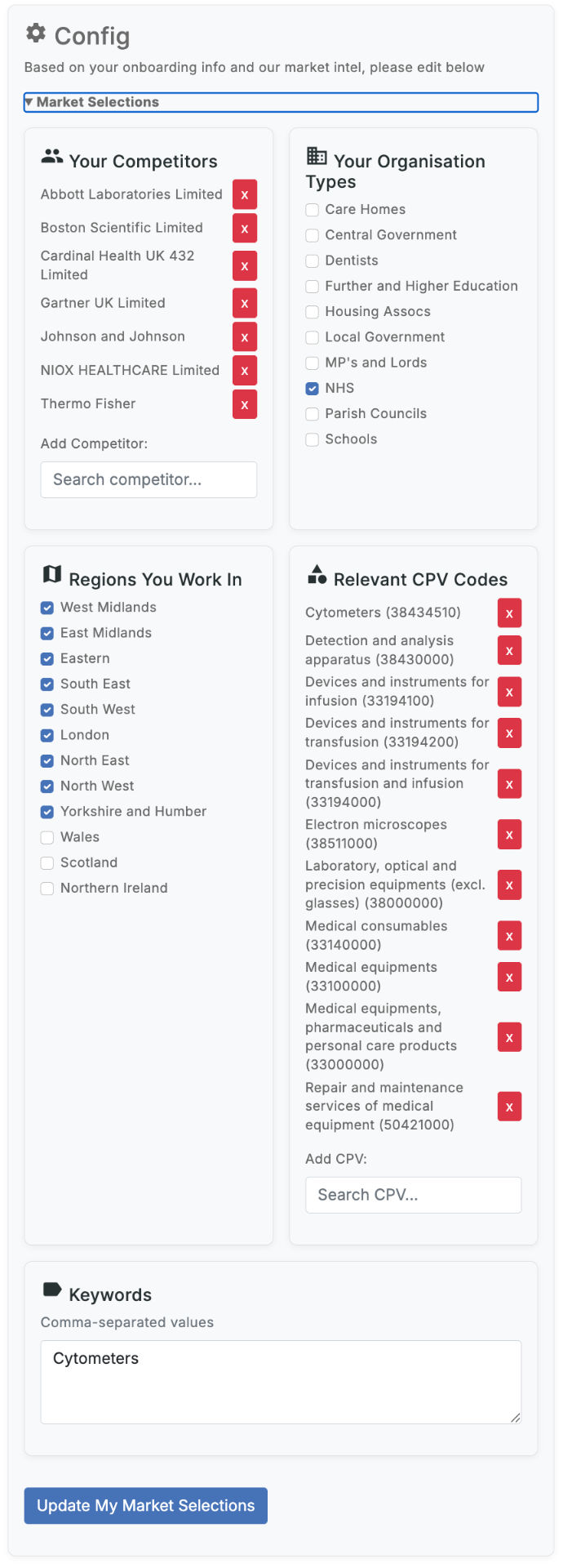
My Market is the single source of truth that powers every chart, alert and search across MyPSN.
 123456
- 1Your CompetitorsNamed rivals you want to benchmark against — add and remove freely.
- 2Your Organisation TypesTick the buyer types you sell to (NHS, Local Government, Schools…).
- 3Regions You Work InLimits your data to the geographies where you can actually deliver.
- 4Relevant CPV CodesProcurement classification codes — the strongest signal for matching tenders.
- 5KeywordsFree-text terms (comma-separated) that catch what CPV codes miss.
- 6Update My Market SelectionsSave — then Rebuild Radar Data on the main page to refresh visuals.
Why this matters
Every downstream feature — events, dashboards, alerts, AI insights — filters against these selections. Garbage in, garbage out.
Recommended starting set
- 3–7 competitors you actively pitch against
- 1–2 org types max for your first run
- All regions you can deliver to today
- 3–10 CPV codes, mixing broad parents and specific children
- 5–10 keywords for the language buyers use
33000000 Medical equipment) and let the analysis show you which children dominate your market.Read your market analysis
Four expandable analysis cards turn raw data into actionable answers about who buys, who's winning, and where you stand.
Buyer Analysis
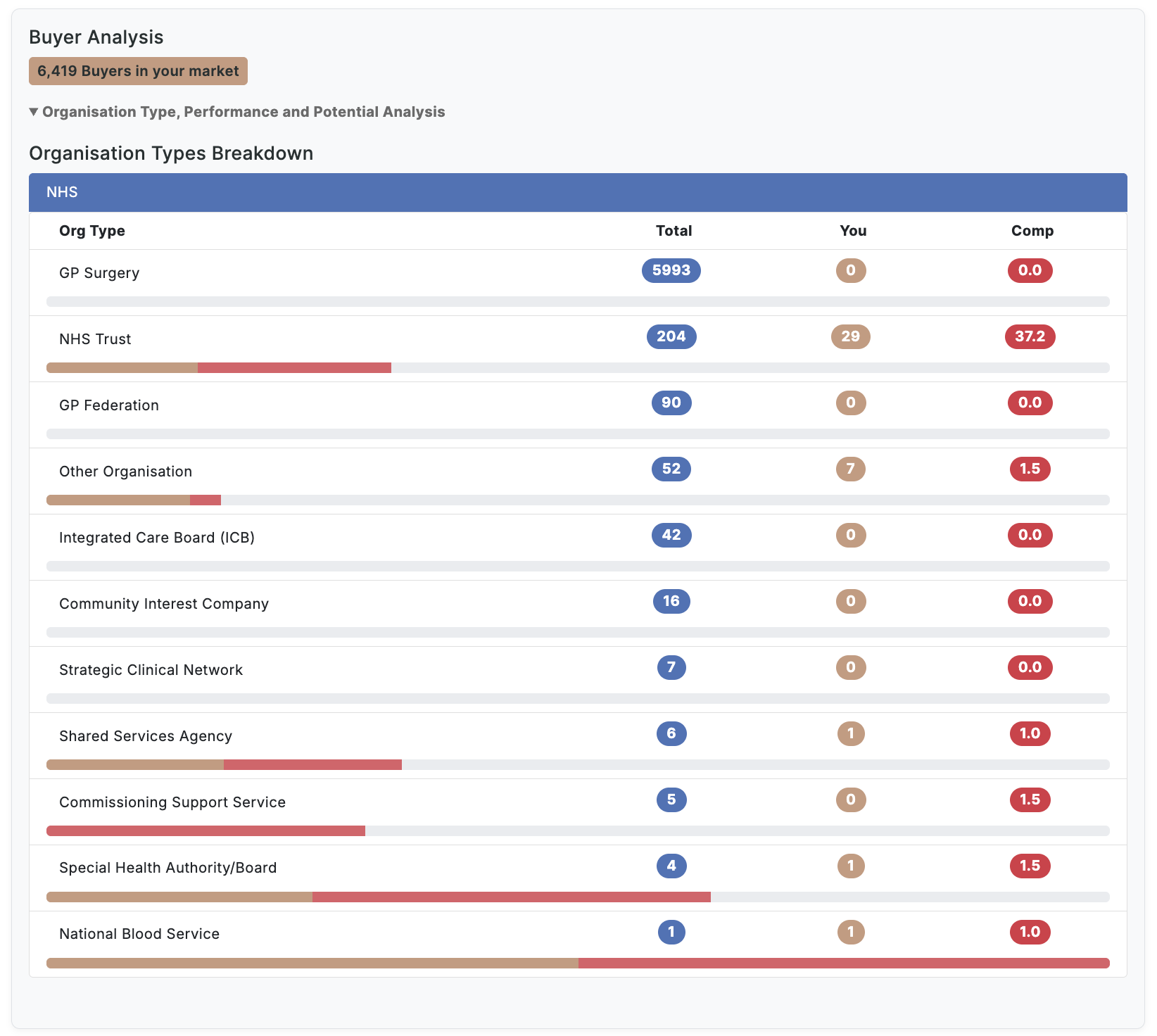
Every buying organisation in your market broken down by org type, with totals plus your share vs. competitors.
Why it matters: Spot under-served org types where you have zero presence but competitors are winning.
Competitor Analysis
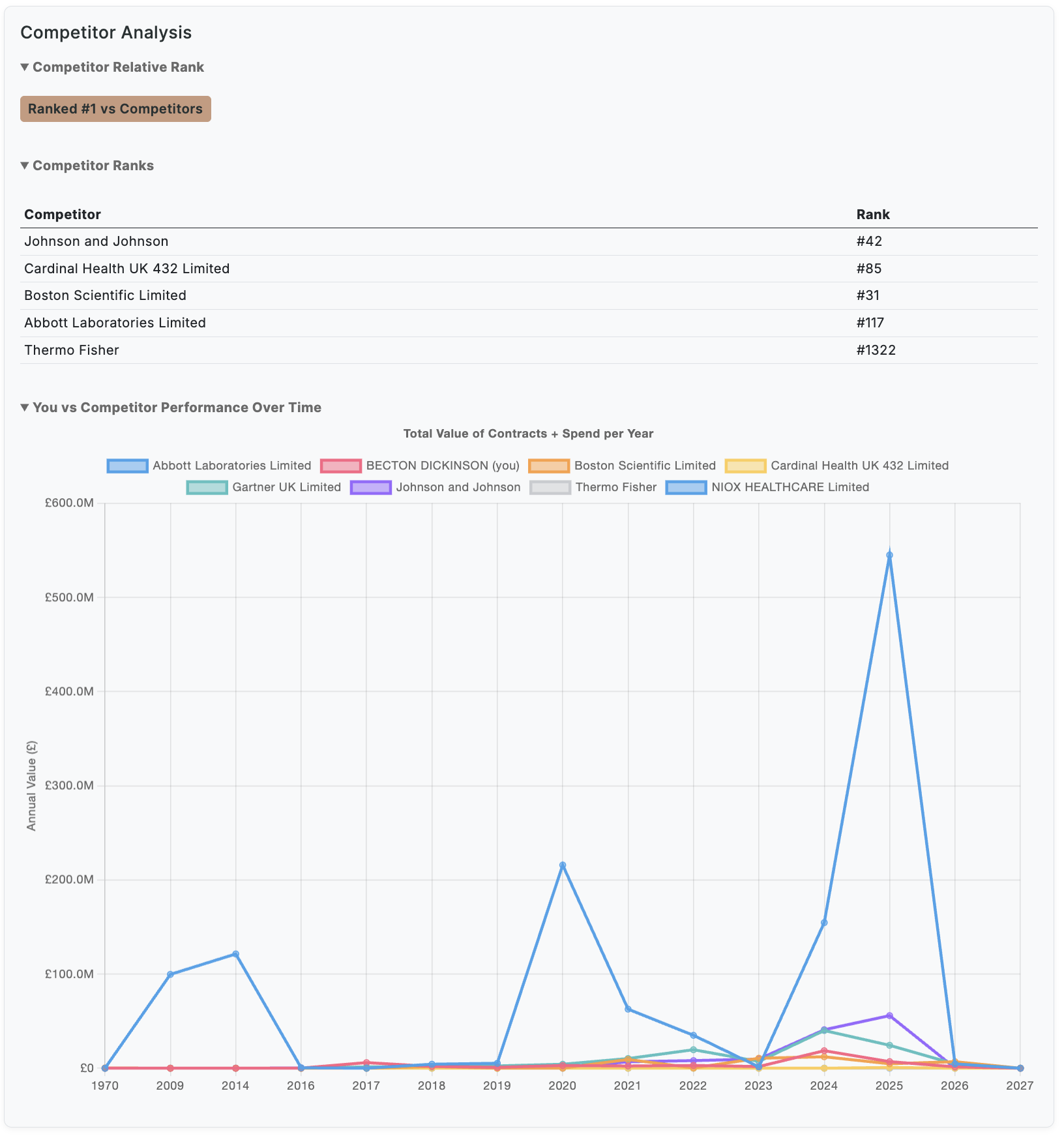
Your overall rank vs named competitors, individual competitor ranks, and a multi-year performance chart.
Why it matters: Know exactly who is ahead, by how much, and whether the gap is widening or closing.
Contract Analysis
Where you sit in the league table of all contracted suppliers (not just your named competitors).
Why it matters: See your true market position — including suppliers you may not have on your radar yet.
Direct Spend Analysis
Off-contract spend in your market over the last year, charted against competitors.
Why it matters: Direct spend is often the easiest revenue to displace — no procurement cycle to wait for.
 1234
1234- 1Buyers in your marketTotal addressable buyer count based on your selections.
- 2TotalHow many buyers of this org type exist.
- 3YouHow many you have a relationship with.
- 4CompAverage competitor coverage — gap = opportunity.
 123
123- 1Relative Rank badgeWhere you sit vs the named competitors you chose.
- 2Per-competitor ranksTheir absolute market rank — useful for prioritising who to chase.
- 3Performance over timeMulti-year line chart of total contract value plus direct spend per supplier.
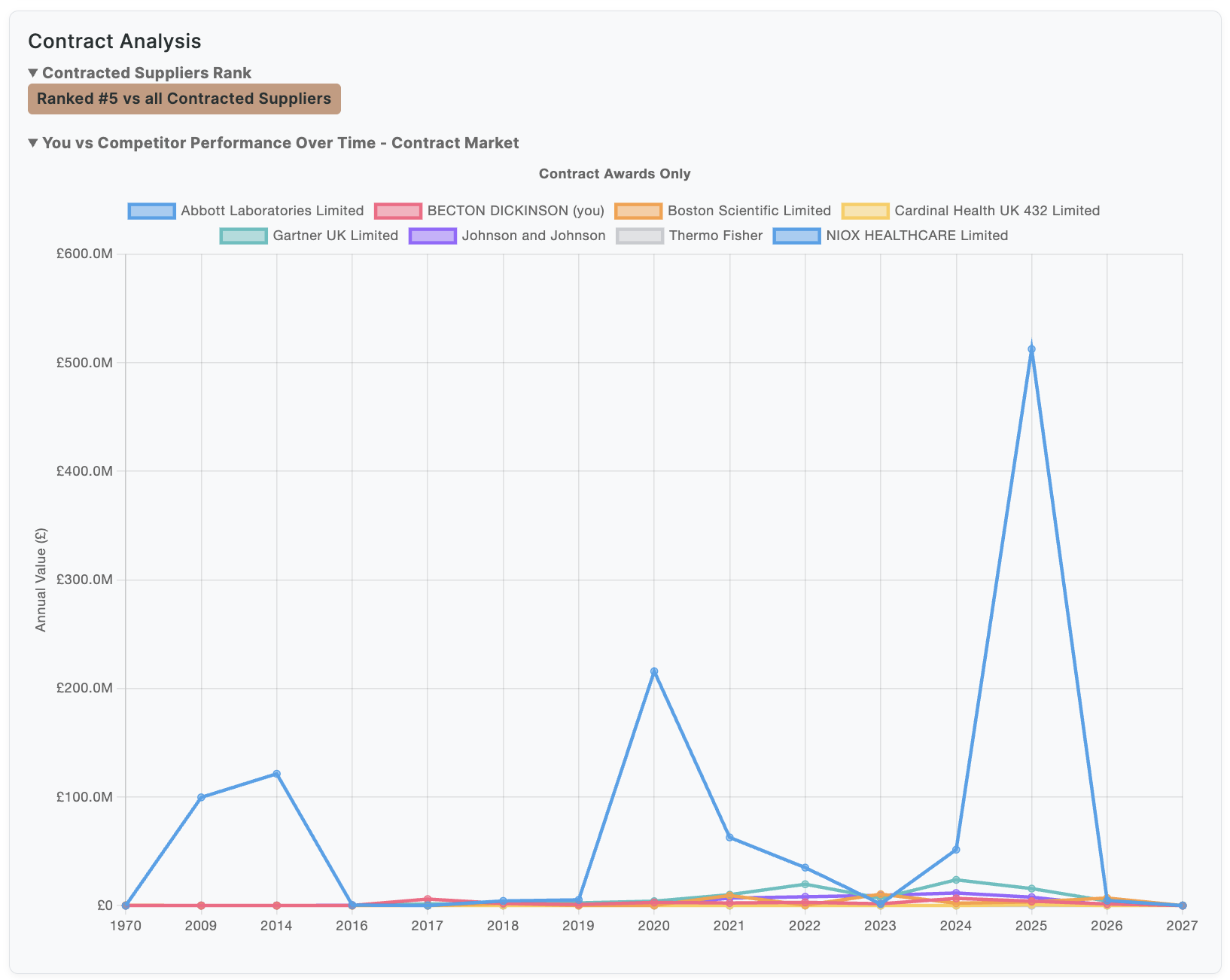 12
12- 1Contracted Suppliers RankYour rank against every supplier holding a contract in your market — not just your named list.
- 2Awards-only chartStrips out direct spend so you can see contracted volume in isolation.
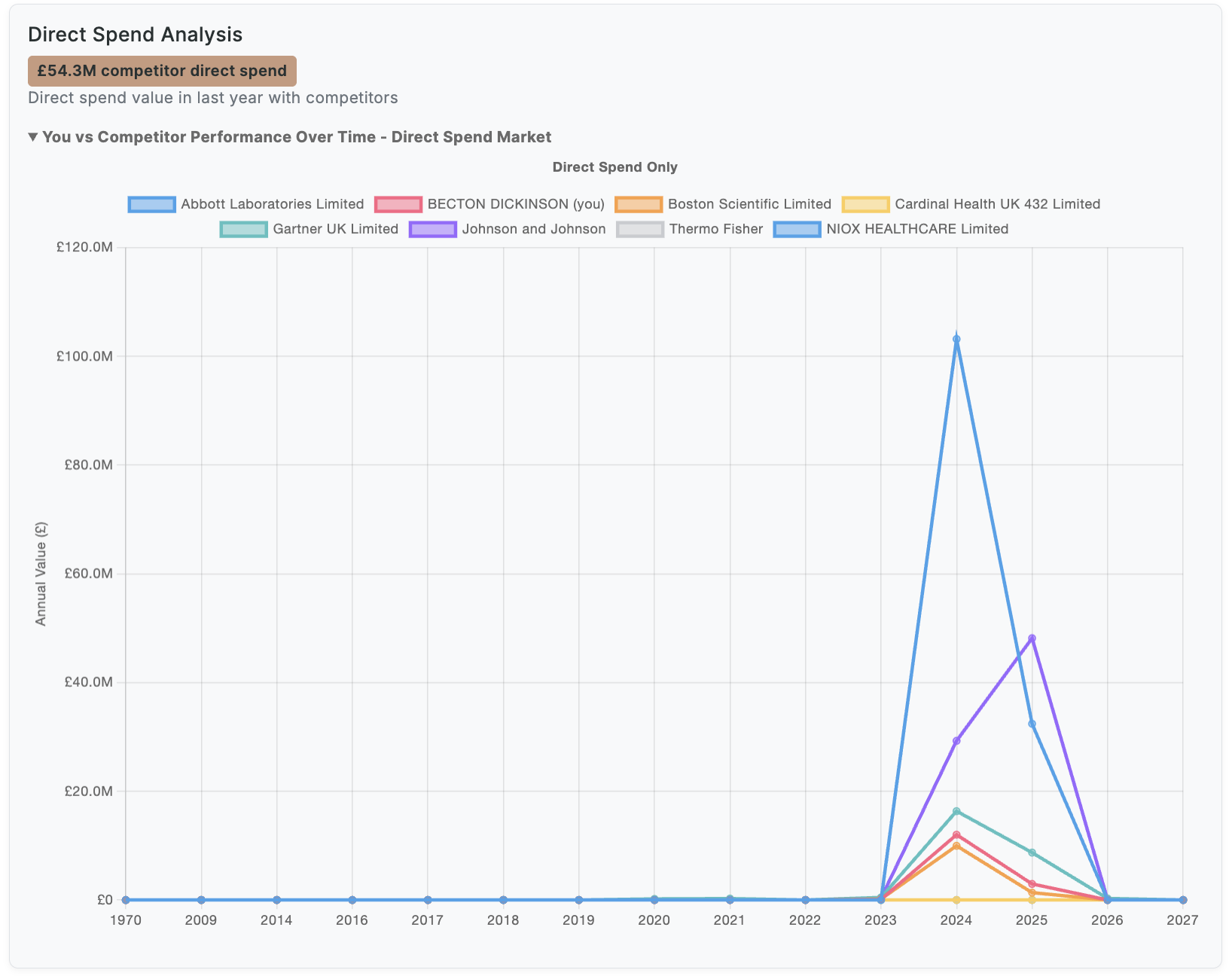 12
12- 1Competitor direct spend£ value of off-contract purchases in the last year — often the easiest revenue to displace.
- 2Direct-spend chartYear-on-year direct spend share per competitor; spikes signal new buying behaviour.
The rest of Company
Beyond My Market, four sub-pages help you act on the analysis: Reports, Saved Searches, Profile and Users.
Reports
Bespoke reports your account manager prepares for you. The flagship is the Supplier Intel Report — a deep-dive on a named competitor or buyer you've asked them to investigate. New reports appear here as soon as they're ready.
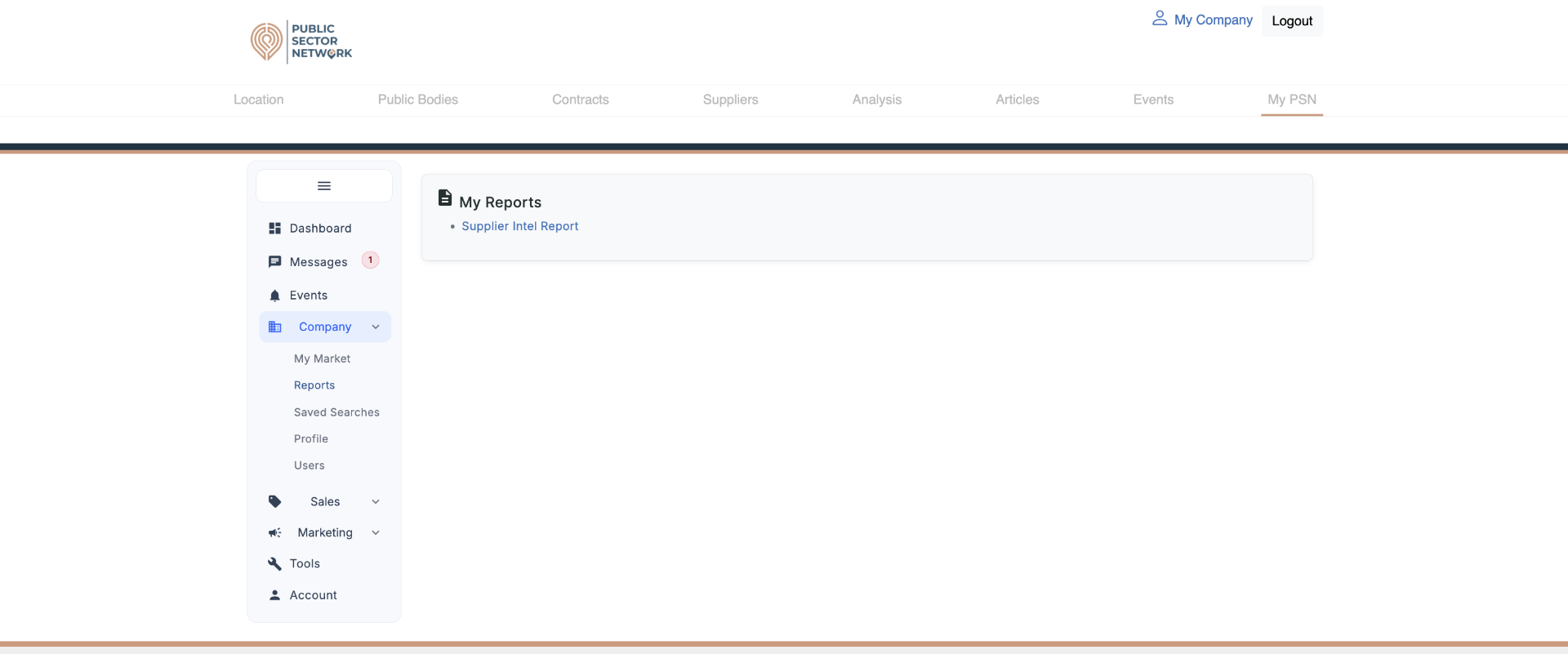 12
12- 1My Reports panelAll reports your AM has shared with your account live here.
- 2Report linkClick to open the full report. Ask your AM to commission a new one anytime.
Saved Searches
Every search you save across the platform lands here, grouped by type. Re-run, download or delete from one place — no need to rebuild filters each time.
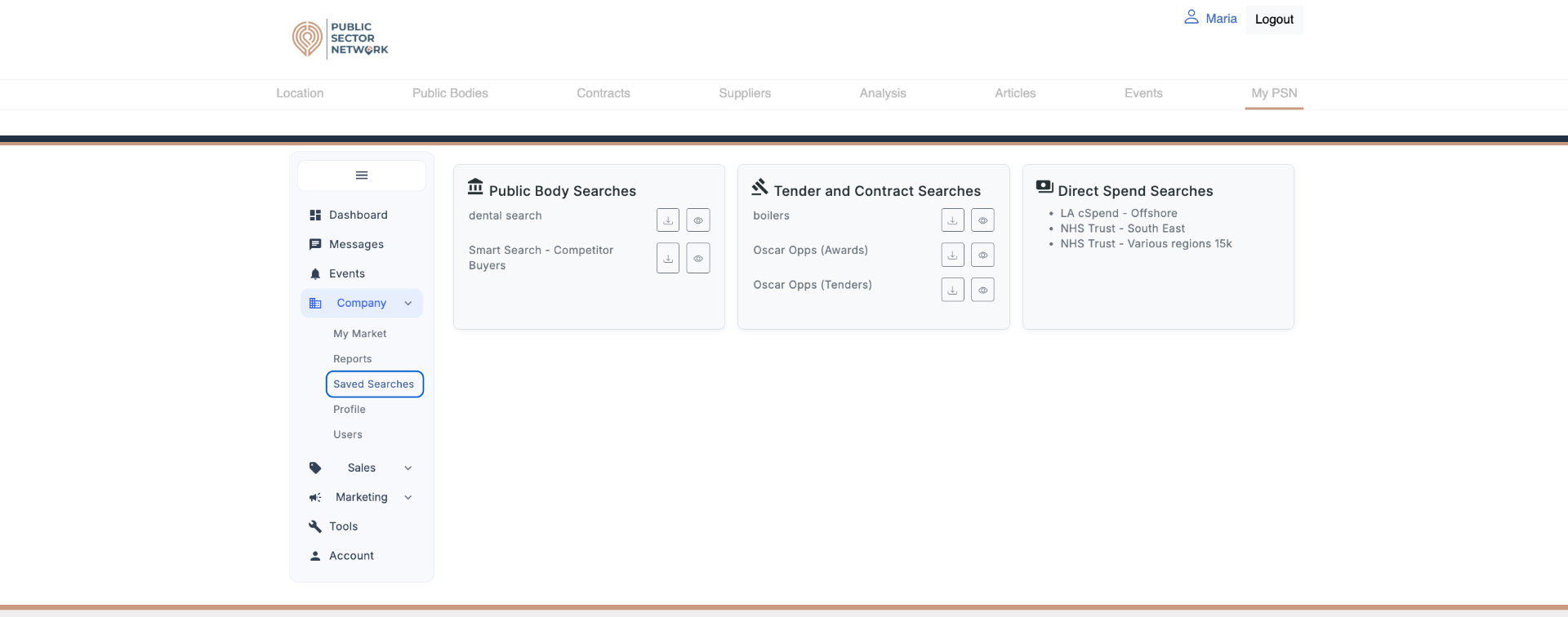 12345
12345- 1Public Body SearchesSaved buyer/organisation searches.
- 2Tender & Contract SearchesSaved tender and contract filters.
- 3Direct Spend SearchesSaved off-contract spend queries.
- 4Download iconExport the search results to CSV.
- 5View icon (eye)Re-run the search and jump back into the live results.
Profile
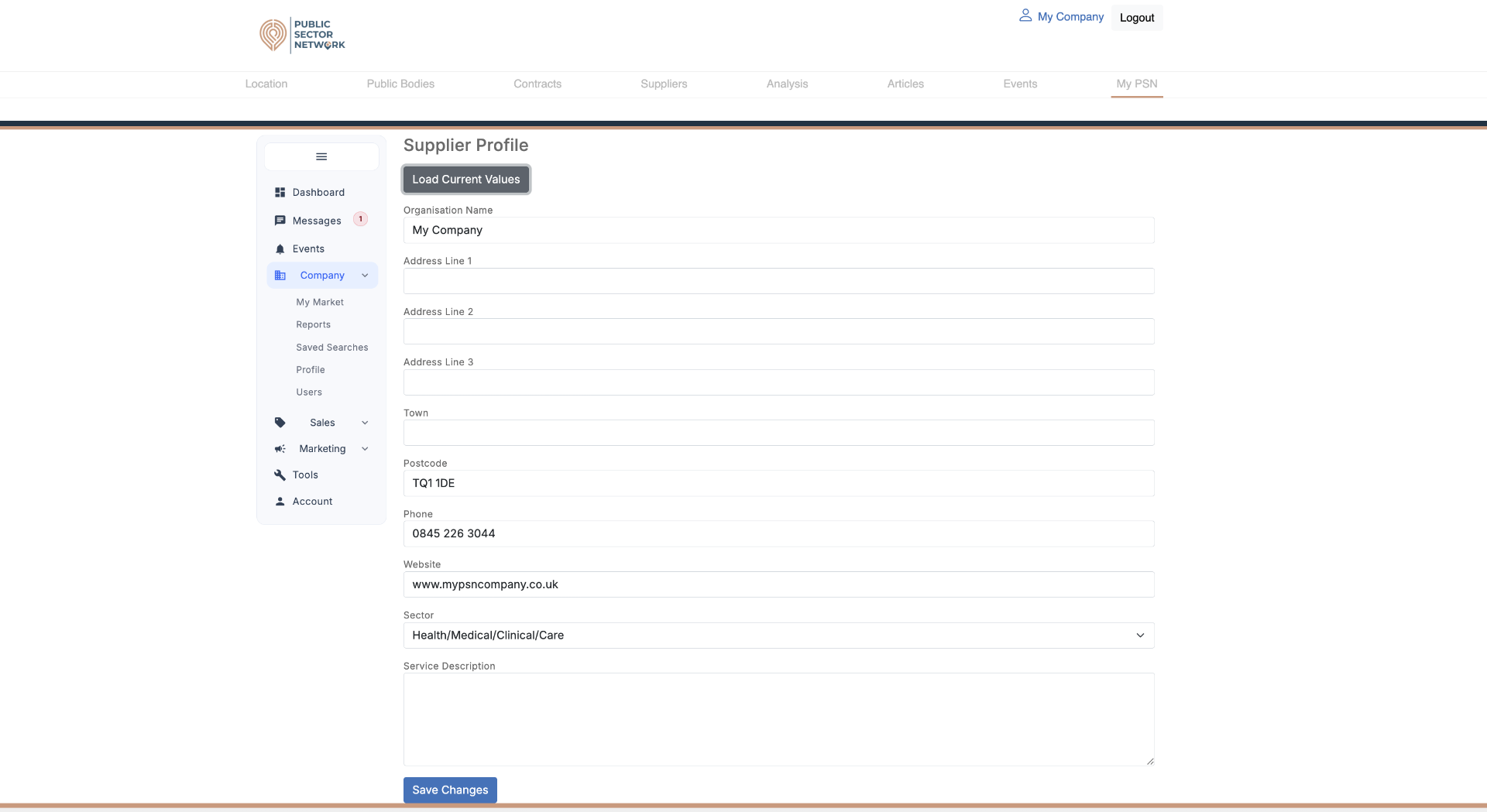
Your public-facing supplier profile. Buyers browsing the network see this — keep it accurate and compelling. Click Load Current Values to populate from your existing record before editing.
 12345
12345- 1Load Current ValuesPulls in your existing details so you only edit what's changed.
- 2Organisation detailsName, address, postcode, phone, website.
- 3SectorPick the dropdown that best matches your offer.
- 4Service DescriptionFree-text pitch — treat it like a 200-word elevator summary, not a feature list.
- 5Save ChangesAlways save — unsaved edits don't push to the public profile.
Users
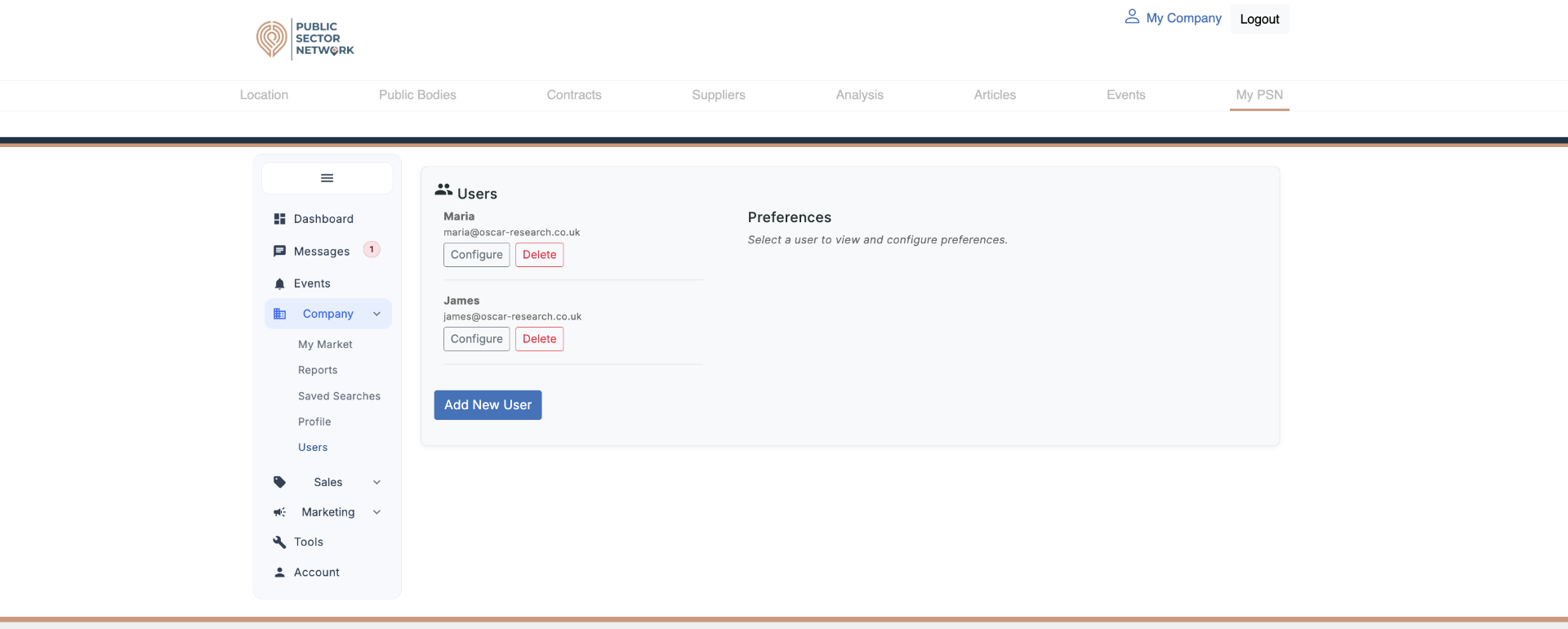
Add teammates and decide who receives which comms. Each user can be configured as Sales contact, Marketing contact, or PSN/Data Subscription contact — so the right person gets the right alert.
 12345
12345- 1User entryEach teammate listed with name and login email.
- 2ConfigureSet this user's contact preferences (Sales / Marketing / Data Subscription).
- 3DeleteRemove a user — do this when someone leaves to keep alerts going to the right inbox.
- 4Add New UserInvite a teammate by email — they'll get login credentials.
- 5Preferences panelClick Configure on a user to populate this panel and tick which comms they receive.