Sales
Two tools work hand-in-hand: Smart Searches surface competitor activity automatically, and Pipelines track every opportunity from prospect to won. Use them together for a closed loop from signal to revenue.
- 1Open Smart SearchesSidebar → Sales → Smart Searches.
- 2Run Competitor BuyersClick Save/View on the Fresh card.
- 3Pick a targetChoose a buyer where a rival has revenue.
- 4Create a PipelineAdd it under Pipelines as Prospect.
- 5Assign & set due dateOwner + due date = accountability.
Smart Searches — competitor activity on autopilot
Pre-built searches that blend data, AI and insight into a targeted action list. Two cards, two completely different angles of attack.
Competitor Buyers
Every buying organisation your named competitors have worked with — across all time.
Why it matters: These buyers already buy what you sell. They're the warmest list you'll ever pitch to.
Competitor Contracts
Competitor contracts expiring in the next ~180 days, auto-filtered for re-procurement timing.
Why it matters: The single best moment to displace a competitor is when their contract is up for renewal.
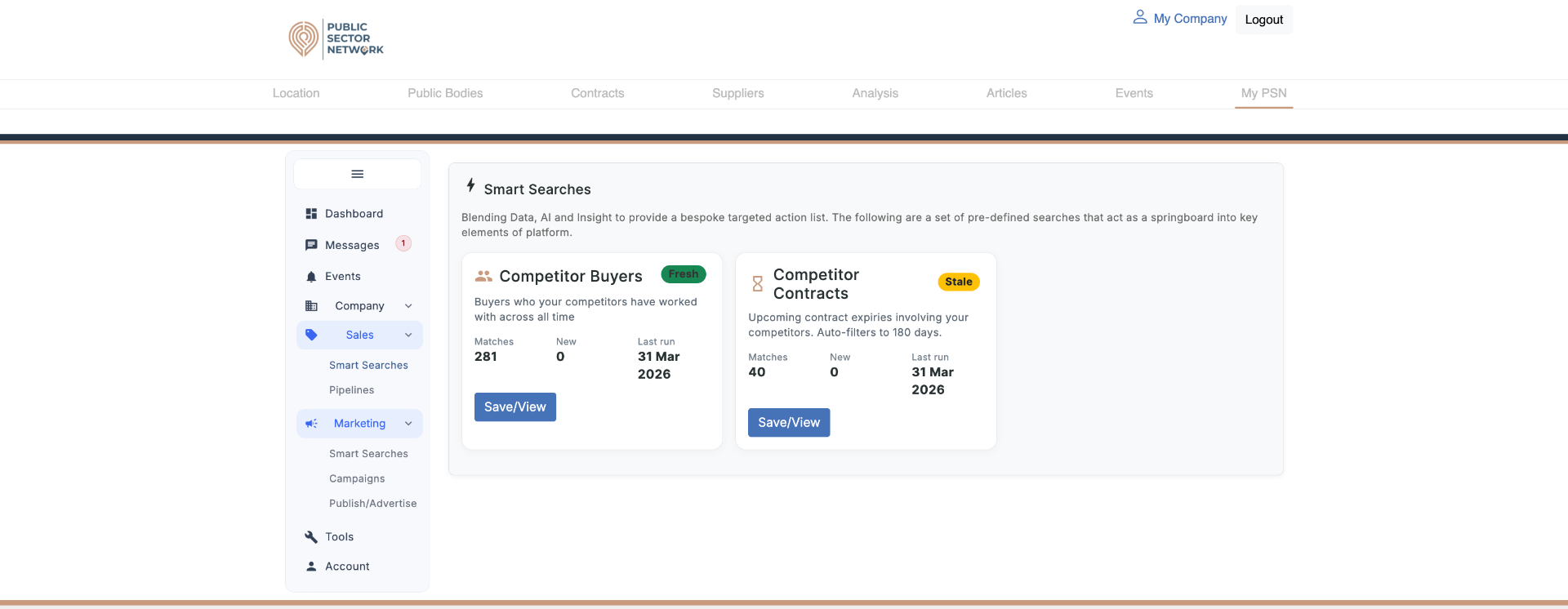 123456
- 1Search title + freshness badgeGreen Fresh = recently re-run; yellow Stale = older than 7 days, re-run before trusting it.
- 2MatchesTotal buyers/contracts the search found in your market.
- 3NewMatches added since you last viewed — your priority list.
- 4Last runWhen the search was last refreshed — anchors the freshness badge.
- 5Save/ViewOpen the matches, drill into a row, then promote the best ones into Pipelines.
- 6Stale badge exampleClick Save/View on a Stale card and the search re-runs automatically.
Freshness badges explained
- FreshRun within the last 7 days — results reflect current market state.
- StaleOlder than 7 days — re-run before acting on it so you don't chase outdated data.
Pipelines — turn signals into closed deals
Every opportunity in one table with stage, owner, due date and buyer. Filter, view or delete from the same row.
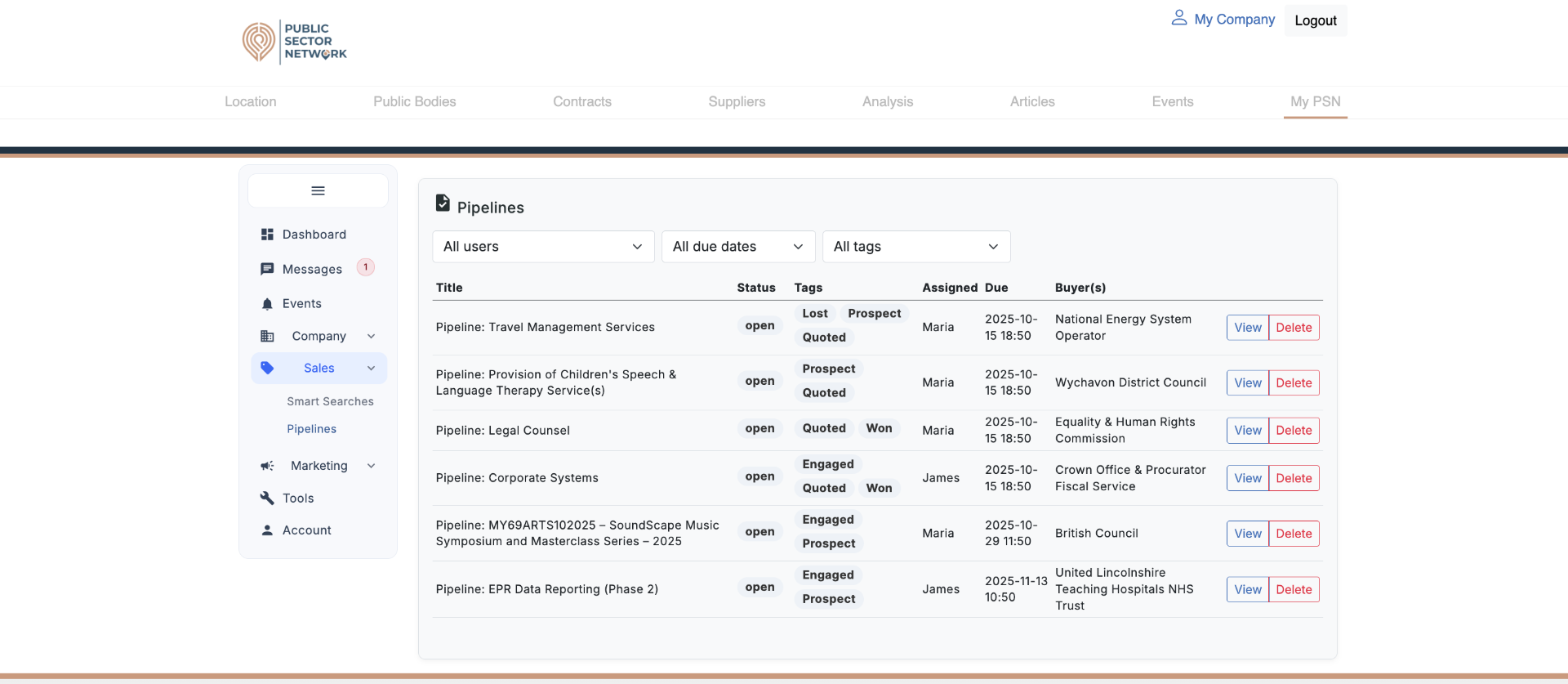 1234567
- 1All users filterSlice the pipeline by owner — perfect for 1:1s and weekly reviews.
- 2All due dates filterFocus on what's overdue or closing this week.
- 3All tags filterFilter by stage tag (Prospect / Engaged / Quoted / Won / Lost).
- 4Tags columnMulti-tag any deal — shows current stage and history at a glance.
- 5Assigned + DueOwner accountability and deadline in one place.
- 6ViewOpen the full pipeline record to update notes, tags or stage.
- 7DeleteRemove a record — but consider keeping Lost deals for re-targeting.
Pipeline stage tags
Tag every entry with one stage tag — filters and reports depend on it.
- ProspectIdentified buyer, no contact made yet — research stage.
- EngagedConversation started, buyer aware of your offer.
- QuotedFormal proposal or pricing submitted, awaiting decision.
- WonClosed deal — keep for reference and forecasting.
- LostClosed unsuccessfully — record reason to learn from it.